
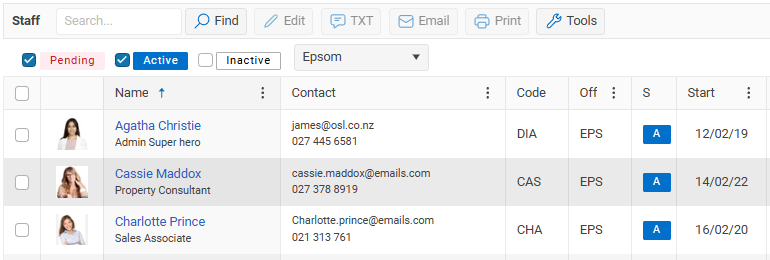
Click on the Staff tile or menu to view your office Staff list
TABLE OF CONTENTS
Adding New Staff
To add a new staff member, including a new Agent, Property Manager, Broker, PA, Manager or Administrator, open the Staff page and click the + Agent button.
The Staff list contains everyone who works in your office, including Salespeople, Agents, Managers, Brokers, Principals, Owners, PAs, Property Managers and Administration staff.
If you are looking for where to add a new Agent or staff member in OSL, you will find this under the Staff section.
Filter Staff by status

Find a staff member - Use the Search and Find box to a staff member that you are looking for.
Type 3 characters in this example ‘Joh’ and then press the Find button.
The Find filter will search First and Last Name as well as any email address and highlight the matching text.
User level - You can see what the staff user level on the OSL User level column.
Selling Agents
Only staff members marked as a Selling Agent can be added to a Listing, Sale or Rental Property.
This prevents non-selling staff, such as administration users, from accidentally adding themselves to a listing or sale.
Any staff member who works as a Selling Agent or Property Manager should have Selling Agent ticked in their Staff settings.
Sort by and Filter - Select all by using the ALL checkbox, click again to un-select everyone.
Staff toolbar

TXT - You can use the TXT button to send a text messages to your staff.
TXT messages to staff are FREE
Email - Use the Email button to send an Email to Staff
Print - Use the print button to print a Staff report.
Staff birthdays
How to get a list of your staff birthdays - Open your Staff list
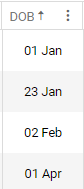
Click on the DOB column, this will sort your Staff in Date of Birth using the Month that has been entered for each Staff member example. Jan - Dec
Use the select all check box then select the Print button
The Birthday column user the staff DOB

Staff anniversary dates
How to get a list of your Staff anniversary dates?
Open your Staff list and Click on the Start column, this will sort your Staff in start date using the Start date entered for each Staff member
Staff tools button

Click on the Tools button to view more advanced staff options.
- Archive - Select an Inactive Agent to Archive them, they will be removed from your Active and Inactive staff list.
- Export - Use the Export button to export to xlsx your staff list.
- Scope - Use the scope filter to see what the OSL user levels are being used in your office
- Task - this option lets you bulk add a task to your staff
NEXT Staff Name & status