
Staff details tab
TABLE OF CONTENTS
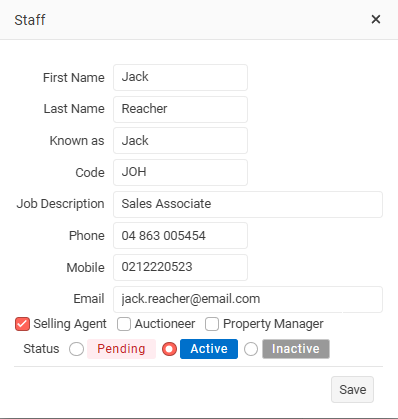
On the Staff Details page, you can efficiently manage all the settings related to your staff. To modify the Staff Name, Code, and selling agent or status simply click on the Edit button.
Staff Name edit button

Edit an Agents contact details and status.
Known As
The Known As name is the name the staff member or agent normally uses and will be displayed throughout OSL.
It is used on reports, flyers, letters, OSL websites, and other documents generated by the system.
Make sure the staff member's preferred name is entered correctly.
For example, if the staff member's full name is Patrick, but they are normally known as Pat, enter Pat in the Known As field.
Code
Each staff member must have a unique Staff Code.
Staff Codes are used within the OSL program on reports and grids to identify who has made changes throughout the system.
For the Staff code try the first 3 characters of their first name
The code should:
- Be between 3 and 5 characters
- Be unique for each staff member
- Be easy to recognise
- Usually be based on the first few letters of the staff member's first name
For example: Janet = JAN
Staff Codes are for internal by the OSL program only.
Selling Agent
If the Staff member is a Selling Agent check this box. Only Selling Agents can be attached to Listings, Sales or Appraisals.
e.g. You would not make an administrator in the office a Selling agents more...
Only Agents marked as Selling Agents can be attached to Listings & Sales
Staff status
When you create a new Staff member, their status will initially be set to Pending.
The available Staff statuses are:
- Pending – The Staff member has been created but is not yet active.
- Active – The Staff member is active and can be used throughout OSL.
- Inactive – The Staff member is no longer active.
Before an Agent can be added to a Listing, their Staff status must first be changed from Pending to Active.
Making a Staff Member Inactive
When a Staff member or Agent leaves your office, follow these steps to make them Inactive:
- Delete their OSL User login
Go to Staff > OSL User and delete their user login. This prevents them from accessing OSL. - Remove them from Available Listings
Withdraw or remove the Agent from any Available Listings they are currently associated with. - Unpublish their Profile
Go to Staff > Profile and unpublish their profile so they are no longer displayed on your website. - Check for outstanding Sales Commission
If the Agent still has outstanding sales commission to be paid, do not change their status to Inactive yet. They can remain Active until their outstanding commission has been processed. - Change their Status to Inactive
Once there are no outstanding commission requirements, change the Staff member's status to Inactive. - Optional – Transfer their Contacts
You can transfer the Staff member's Contacts to the Office or another Agent.
Go to Office Settings > People to manage the transfer.
NEXT Staff Photos