
eNews → eLetters
TABLE OF CONTENTS
eLetters
eLetters is another email tool within OSL that allows you to send bulk follow-up emails to your client database.
The main difference between an eNews campaign and an eLetters campaign is that the people you are sending to are selected automatically from the listings that you have chosen.
These contacts are typically the vendors or landlords attached to your selected listings. This makes eLetters ideal for keeping in touch with large groups of clients while still maintaining a professional and consistent approach to communication.
This tool is commonly used for:
Examples:
- Sending a general email update to your client database
- Vendor follow-up: introducing your property management services to all new vendors from the past month
- Vendor sold follow-up: contacting vendors whose properties have sold within a selected timeframe (e.g. last month, six months, or year)
- Ongoing efforts: providing updates and support to current vendors whose properties are still on the market
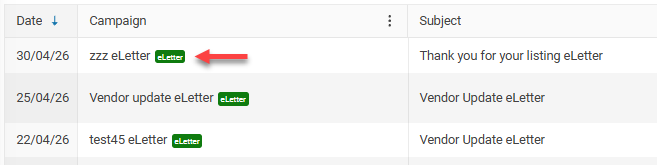
To get started, search your Listings database to find the group of properties you are targeting. Once you have your results, select the listings and click on the Email button, then choose the eLetter option.
This will automatically save the associated vendors (or purchasers) into your email campaign, allowing you to quickly create and send your message.
eLetters differ from eNews campaigns because you select your listings first, and the people associated with those listings are automatically added to the email campaign. This ensures that your follow-ups go directly to the relevant vendors or landlords without manually selecting each contact.When you create a campaign you will need to follow each of these steps in the eLetters wizard; Save your campaign at anytime, a saved campaign will be shown as a Draft campaign until you are ready to send.
Step 1 - Listings
Use the Listings → Search page to select the Listings whose Vendoprs you want to find.
Select your results and then click on the Email button and select the eLetter option.

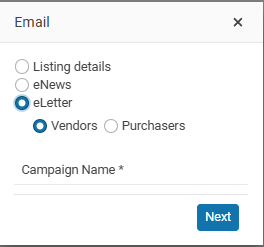
Give your camapign a name. The name of your campaign is not sent with your email, it's an internal reference for you. Then clcik on the Next button to open the eLetter wizard.
Step 1a - Send From
Choose the agent whose details and signature you want the email to be sent from.
This setting determines which agent the email campaign is sent on behalf of. Once you select an agent, their email signature will automatically be inserted into the campaign, ensuring consistency and a professional presentation.
It’s important to make sure the selected agent has a correct and up-to-date email signature saved in their profile before sending the campaign.
How to check or update the Agents signature:
Go to Staff → Email tab and confirm that the signature details are set correctly.
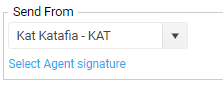
OSL Agent users will automatically add your signature
Step 2 - Message
On Step 2 you enter your email message
Email Subject

Examples email subject lines might be;
- Vendor update
- I hope you are enjoying your new home
- Thank you for your listings
Template
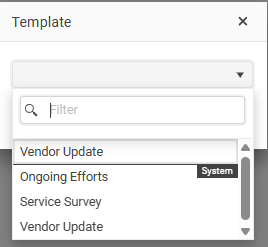
Use an office email template that you have created or one of the system templates.
Choosing the correct template is important because it can display not only the vendor details but also the property associated with them, ensuring your emails are clear, professional, and relevant.
Merge fields
If you are starting with a blank email message you can use the Insert merge fields option.
The available merge field are in the Insert drop down
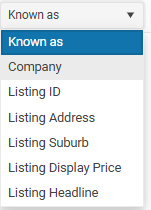
It’s important to use the merge fields so that you can make your email more personal.
Use the Email merge field ‘Known as’. When you create an email addressed to the person
e.g. ‘Hi John’ it will greatly increase the chances that you email will be opened.
Here is an example of an email being sent out to Vendors from the office manager.
Dear ~*Known as*~
Property located at: ~*Listing Address*~ ~*Listing Suburb*~
Listing ID: ~*Listing ID*~
Thank you for entrusting us with the sale of your property.
As part of the ~*Company*~, my team and I have every confidence in the professionalism, skills, and service that we will provide throughout the sales process.
Should an offer be received, it will be presented to you as soon as possible. Please note that we are legally required to submit all offers for your consideration; however, this does not necessarily mean your sales consultant will recommend acceptance.
You are a valued client to us, and if you have any questions or concerns at any stage, please feel free to contact me directly.
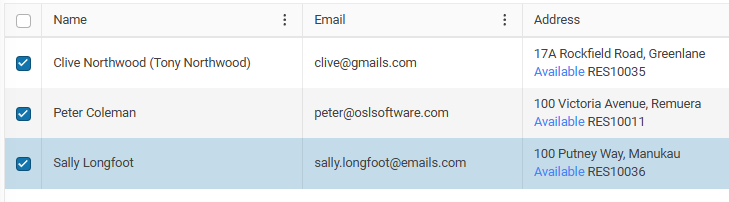
Step 3 - People
The people will already be selected, from your Listing search.
Step 4 - Preview
On this step you can see a Preview of your email.
The Preview step and sending a Test email will not merge fields in your email. Any merge fields in your eLetter campaign are only merged when the email campaign runs. Step 5 - Send
You are done now all you have to do decide when you want your email campaign to run.
- Send now or schedule for a day and time
- Then click on the Send button. You are Done!
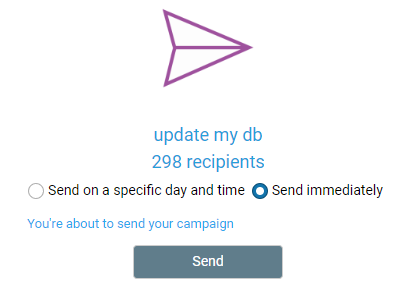
Your email campaign will now be placed in the outbound email queue.

Email campaigns are placed into a queue on our servers and will be sent out as close as possible to your chosen time.Auto unsubscribe - Emails are sent with an unsubscribe option.
Results
Open Marketing → eNews and select the campaign that you want to view the results for.
Select a sent campaign and click on the Results button more...
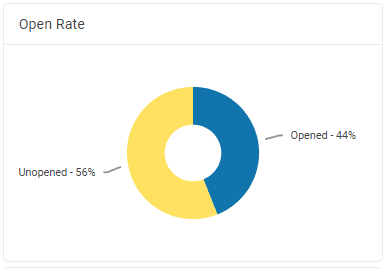
Here you can see who opened your email as well as who has clicked through to view more details.
After you have sent your email you can see who has opened your email and how many people have clicked through on your email.
NEXT eNews Tips & Tricks