
People eLetters
eLetters is an email tool. This allows you to send bulk follow-up emails to your client database.
Examples;
Anytime you want to send an Email to your client database.
- Vendor follow-up - management introduction to all new Vendors for last month
- Vendor Sold follow-up - send an email to all Vendors that have sold in the last month, six months , year
- On Going Efforts -
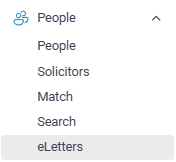
Start by searching your people database and then selecting the Email button eLetter option
eLetters is different from eNews becuase you select the People first when creating your email campaign.New eLetters Campaign
Search your people database and select who you want to send to.
Then click on the Email button
When you create a campaign you will need to follow each of these steps in the eNews wizard; Save your campaign at anytime, a saved campaign will be shown as a Draft campaign until you are ready to send.
Step 1 Select you People
- Name your campaign - The name of your campaign is not sent with your email, it's an internal reference nothing your contacts will see. The campaign Name is compulsory.
Send From
Choose whose signature you want the email to be sent from.
This option determines which agent the email campaign is sent on behalf of.
Select the agent, and their email signature will automatically be inserted into the campaign email.
Before sending, make sure the selected agent has a correct email signature saved in their profile.
To check or update the signature:
Go to Staff > Email tab and confirm the signature details are set correctly.
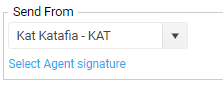
OSL Agent uses will automatically add your signature
On Step 2 you enter your email message
Step 2 Message
Email Subject

Getting your email message right. Give your email an eye catching subject, people receiving your email will see the subject of your email first.
Examples email subject lines might be;
- I thought you might be interested
- The address of the Listing
- New listings
- Market report
- Newsletter
Email Body
On this step you create the message for your email.
This section will appear above any listing that you are sending.
Email Templates - You can use one of your own templates or a system email template or you don’t have to use one at all and you can just type your email.
Select your template or create your email
It’s important to use the merge fields so that you can make your email more personal.
Use the Email merge field ‘Known as’. When you create an email addressed to the person
e.g. ‘Hi John’ it will greatly increase the chances that you email will be opened.
Step 3 Preview
On this step you can see a Preview of your email.
The Preview step and sending a Test email will not merge fields in your email. Any merge fields in your eLetter campaign are only merged when the email campaign runs.
Step 4 Send your email campaign
You are done now all you have to do decide when you want your email campaign to run.
- Send now or schedule for a day and time
- Then click on the Send button. You are Done!
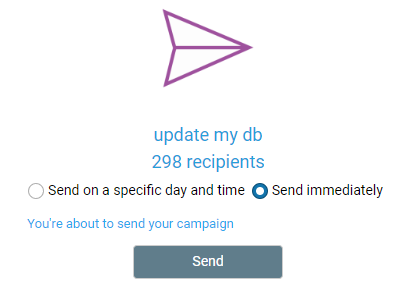
Your email campaign will now be placed in the outbound email queue.

Email campaigns are placed into a queue on our servers and will be sent out as close as possible to your chosen time.
Auto unsubscribe - Emails are sent with an unsubscribe option.
Results
Select a sent campaign and click on the Results button more...
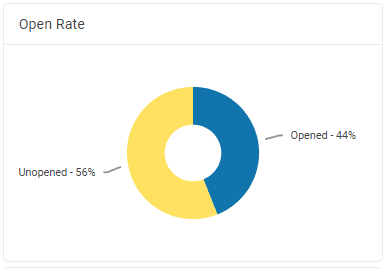
Here you can see who opened your email as well as who has clicked through to view more details.
After you have sent your email you can see who has opened your email and how many people have clicked through on your email.
NEXT eNews templates