Listing → Open Homes tab
TABLE OF CONTENTS
There are two 'how to' videos for Running an Open Home in the Help > Tutorials section
How to run an Open home

Use the Open Home tile to run your open home will allow you to quickly add your open home attendees to your database.
Easily send a follow up text message or email to your open home attendees.
It also protects your Vendor and yourself by having a strong list of who has attended their open home
- Paper registration form (2 layout options)
- Manually add your attendee using the Add button
- Share a QR code using the QR button
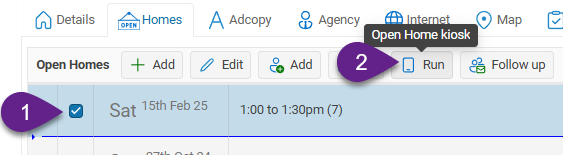
- Click on the Run button to run your Open Home in kiosk mode
Follow up

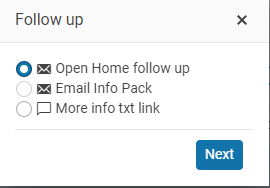
Now that you have entered your visitor details you can follow up with them using;
- Email Open Home follow-up
- Email property Info Pack
- Send a more info SMS message
- Phone call follow up
How to create a property Info Pack
Create a Phone Call Follow-Up List
To create a follow-up calling list, open the Listing and go to the People tab. Select the contacts you want to follow up with, then click the Call Plan button.
This creates a Call Plan in OSL Call Manager, allowing you to work through your calls, track your progress and manage any follow-up activities.
Open Home Notes
Running an Open Home for Another Agent
If the agent conducting the Open Home is not one of the agents assigned to the listing, use the Select an Agent option when creating the Open Home. This allows you to nominate the agent who will be running it.Emailing Your Privacy Policy
If your office has a Privacy Policy recorded in OSL, you have the option to email a copy of your office or company's Privacy Policy to Open Home visitors.Watch the Open Home Training Video
For a step-by-step demonstration of how to use the Open Home features in OSL, watch the training video available under Help > Workbooks.