
The Search option will search for recent matching sales AND any matching properties currently on the market.
Open your Appraisal and select the CMA tab.

TABLE OF CONTENTS
Open your Appraisal and select the CMA tab. Underneath it you'll find three sub-tabs: CMA report, Recent Sales, and On Market.
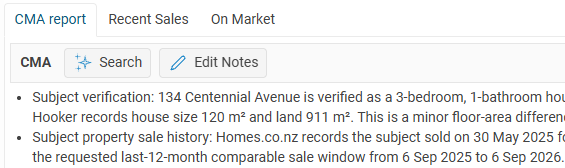
Search
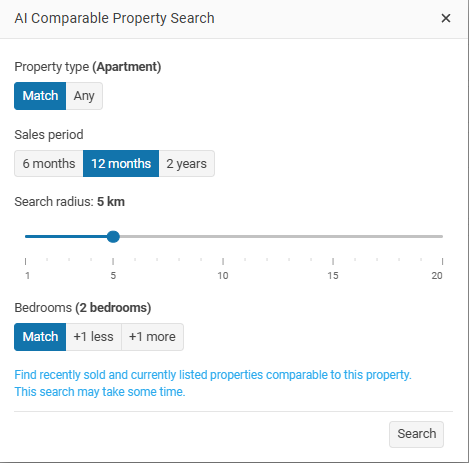
Clicking Search button opens a panel where you can set your AI Comparable search options before running the search:

- Property type - choose Current to only find comparables of the exact same property type as your Appraisal (e.g. House), or Any to include any property type - Any is still limited to the same broad category as your Appraisal (Residential, Rural, Commercial or Business), so a Residential appraisal will never pull in Commercial comparables.
- Sales period - 6 months, 12 months, or 2 years.
- Search radius - drag the slider from 1–20 km to set how far from the subject property to search. This is using the GEO coordinates of your Appraisal property. If the property does not have a location on the Map tab then only the suburb will be used.
- Bedrooms - match the exact bedroom count, or allow one more/one less than the subject property.
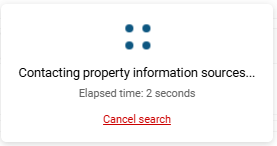
The search may take up to a couple of minutes. You can cancel an in-progress search at any time using the Cancel link shown while it's running.
When the search finishes, matching recent sales and on-market properties are saved automatically - there's no need to review and manually select which results to keep. As well as any notes that are needed to explain some of t5he properties. A short confirmation appears, for example:
Search completed
8 Recent Sales found
4 On Market properties found
The Recent Sales and On Market grids update straight away with the new records, and any general notes the AI found (caveats, data quality notes, etc.) are saved to the Appraisal's Notes.
Add properties manually
If you already know of a comparable sale or property on the market you can add using the + Add button on the Recent Sales or On Market tabs.
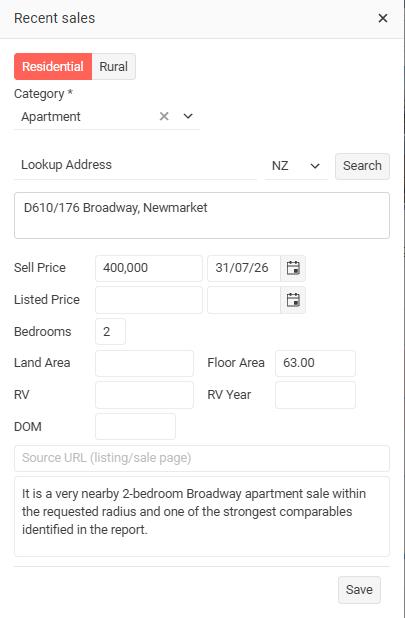
Use the Lookup Address field to find the address (the same way as adding a new listing), then fill in the sale/listing details - price, bedrooms, land and floor area, date, etc.
There's also a Source URL field - paste a link to the listing or sale's page (e.g. on realestate.co.nz or Trade Me) here. Once saved, the property's address becomes a clickable link in the grid and on the printed CMA report, taking you straight back to that page.
Manually added records are marked with a small MAN badge next to the address in the grid, so you can tell them apart from ones the AI search found.
Editing
After adding a sale (whether from a search or added manually) you can still edit its details or add a comment.
You can also do the same for any On The market properties that you have added to your Appraisal
Select the sale in the grid and click the Edit button.
AI Assistant

You can use the AI Assistant button to summarises the Recent Sales and On Market records that you've already saved against this Appraisal - if none have been saved yet, run a comparable Search first.
Use the Edit button to add your own summary and set the marketing methos that you are suggsting as well as a search price
CMA report and Print
On the CMA report tab you can add your own comments and suggested sale method for the Appraisal.
If you've saved at least one Recent Sale or On Market record, you can use the AI Assistant button to have the AI write a short valuation summary paragraph based on the comparable evidence you've saved, ending with an estimated value range. Review it and click Save to add it to your Notes.
Select the Print button to create your CMA report as a PDF. Choose which sections to include:
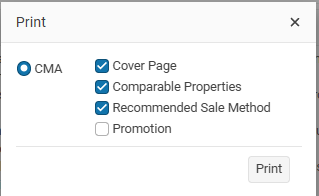
- Cover page
- Comparable Sales including any On the market properties
- Recommended Sale Method
- Promotion
Each comparable property's address in the printed report is a clickable link - if you added a Source URL for it (or the AI search found one), clicking the address opens that listing/sale page directly; otherwise it falls back to a Google search for the address.
Use Save & Finish to save your CMA to the Appraisal's Docs tab.
Important you can also use the Recent Sales and Currently on the market in your Proposal.