
Add a Proposal to your Appraisal. The Proposal is used to tell the postenatil Vendor more than just the property details, you can add in more pages to create a complete profile of not only the property but also of yourself and your office.
The email is designed to be viewed on the vendors mobile phone or PC.

TABLE OF CONTENTS
- Appraisals with Proposals
- Creating a Proposal
- Select a Proposal template
- Adding a new page
- Testing your Proposal
To win a potential listing, you can utilize Proposals as a powerful listing tool.
The goal of a proposal is to persuade the potential client that you are the best choice for their needs. By showcasing your expertise, understanding the client's requirements, and providing a clear plan, you can increase your chances of winning the listing.
Create a modern proposal for you potential vendors.

Important
The theme of your Proposal will follow the theme of your office's OSL website
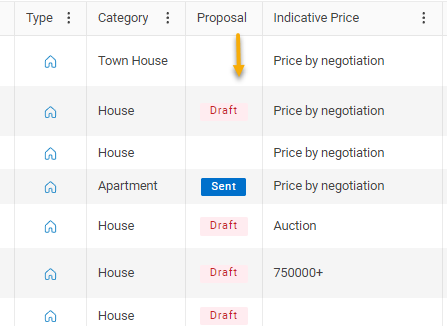
As you build your proposal you will see the Proposal column displayed with the word Draft until you send to your potential Vendor.
You can see the status of a Proposal in the Appraisal grid
Creating a Proposal
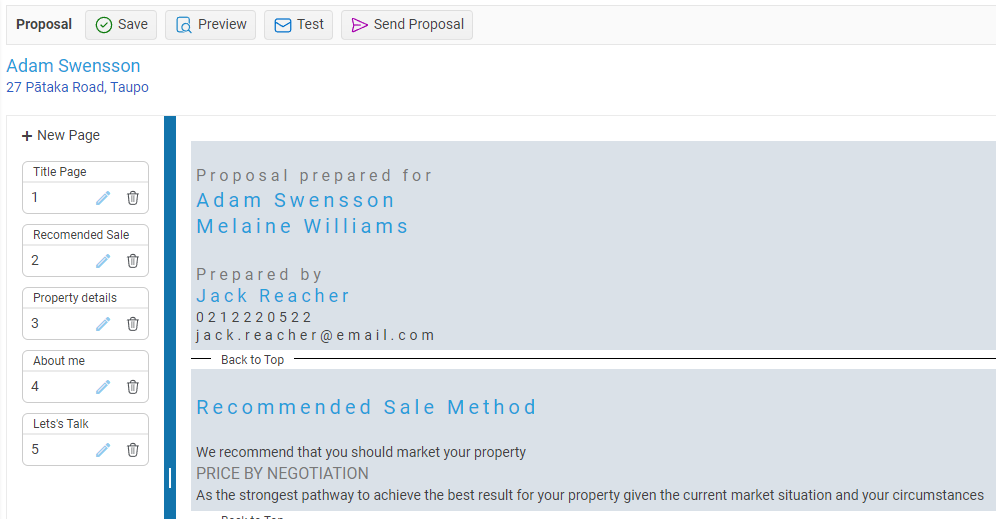
Open your Appraisal and select the Proposal tab, select the New button to create a New Proposal
Select a Proposal template
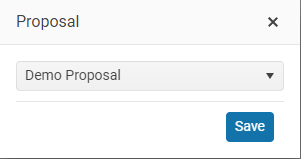
There are different Proposal templates , for different listing types.
Select your proposal template here
Adding a new page
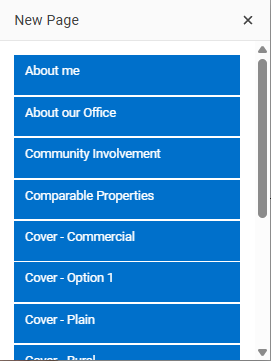
Each page that you add to your Proposal is a template page
Click on the + New Page button to add another template page to your proposal.
Page order
changing the page order - click and drag to change the order of your pages
Delete a Page
Use the Delete button to remove a page from your Proposal
Testing your Proposal
use the Test email button to send the email to yourself for testing.