
People Filters toolbar

Click on the Filters button to see the Filters toolbar where more Filter options are displayed.
TABLE OF CONTENTS
Filters toolbar

These options are also available in the People > Search page
Contact Status
Every contact has one of four statuses. You can see and change them from the contact itself, and filter the Contacts list by them.
| Status | What it means | Where you'll see it |
| **Active** | A normal, current contact. | Shown in lists, searches, e-News and the Contacts tools. This is the default view. |
| **Archived** | A contact you no longer want in your day-to-day lists, such as an old enquiry or someone who has moved on. Nothing is lost. | Hidden from the default Contacts list. A contact marked Archived carries an "Archived" label at the top of the contact. |
| **Deleted** | A duplicate that was merged into another contact. | Hidden from agents. Select **Deleted** in the Status filter of the contact search to see them. |
| **Spam** | A junk or fake enquiry. | Hidden from the default list. Select **Spam** in the Status filter to see them. |
Changing a contact's status
- Archive or reactivate one contact:** open the contact and use the **Active** switch. Switch it off to archive, on to bring it back.
- Archive many contacts:** in **Contacts**, tick the contacts you want (or tick the box at the top of the list to select every contact in your search), then choose **Tools > Inactive** and confirm. You can only change your own contacts, and office users can change contacts in their company's offices. A message tells you if your selection includes someone else's contact.
- Merge duplicates:** pick the two duplicates in the Contacts list and choose **Merge**. One contact is kept. The other is marked **Deleted** and hidden.
- Mark as spam:** on a Task or enquiry, use **Spam**. The contact is marked Spam, the email is flagged as bounced so nothing more is sent to it, and the task is completed.
Good to know
- Nothing is permanently removed.** Archiving, merging and spam only change the status, so the contact and its history are kept. Archived contacts can always be switched back to Active.
- A contact can't be archived while it is attached to a vendor** on a listing or appraisal. Remove that link first.
- Archived contacts don't appear in the default list.** To find one, tick **Archived** in the Status filter of the contact search.
- Contacts you archive also stop receiving e-News and mailing-list emails.** That's expected, and it's why archiving is useful for contacts that are no longer relevant.
- Don't use Archive to remove duplicates.** Use **Merge**, so the history is kept on one contact.
Groups
You can use the Group option to view all Contacts in a Group.
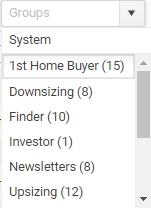
System Groups (in Blue) are groups built into the program. People in these groups are automatically maintained.
Star rating
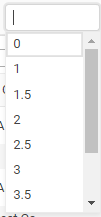
If you are using the Star rating you can quickly filter your Contacts by star rating.
Note: You will only see the Star options that you have used in your database.
Sort Order
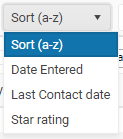
- Change the Sort order
- Date Entered in OSL Office Live
- Last activity entered
- Star rating
Click on the Filters button again to close the toolbar