
Listing > Docs tab

The Listing > Docs tab is your Listing document library.
TABLE OF CONTENTS
Listing Documents
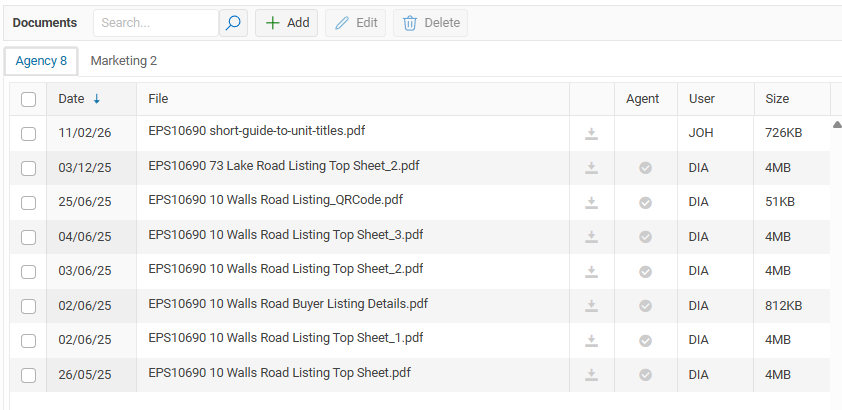
The Listing Documents tab is used to store and manage all documents related to a listing.
There are two categories of documents:
Agency – Compliance and transaction-related documents.
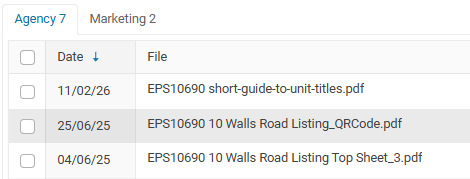
Marketing – Promotional material used to advertise the property.
Documents can be added in two ways:
1. Create documents from within OSL
You can generate documents directly in OSL, such as flyers and other marketing material. These will automatically be saved to the Listing Documents tab.
2. Upload your own files
You can upload external documents from your computer, for example:
LIM reports
Agency Agreements
Marketing plans
Disclosure documents
Property information and supporting documentation
All documents added here are linked to the listing and can be viewed, shared, or emailed when required.
Adding a Document
Use the Add button to attach a document to your listing.
Click Select Files… and browse to the files you wish to upload.
You can also use the Library option to add a document from your company document library.
To upload multiple documents, simply drag and drop the files into the upload area.
Documents can be added to Listings, Sales, Contacts, and Promotions.
Marketing documents
Marketing documents
Info Pack
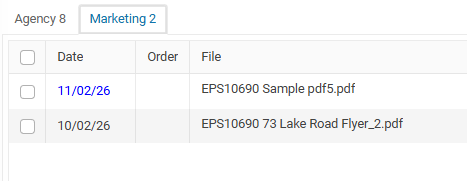
Documents in the Info pack are indicated with tick in the Info pack column.

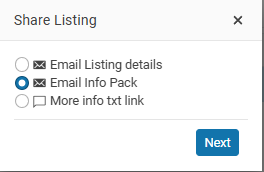
This option sends the documents included in the Info Pack as links within your email. Any document marked for inclusion in the Info Pack will be automatically included.
To include documents in your Info Pack:
Open the Listing.
Go to the Docs tab.
Select the document you want to include.
Click the Edit button and mark the document to be included in the Info Pack.
Note:
Documents sent using this option are sent as links only within the email (not as attachments).
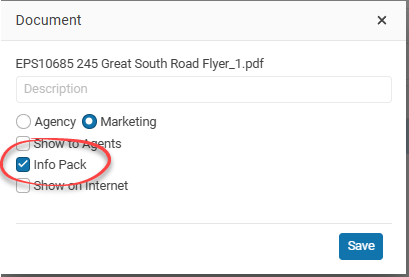
- Open the Listing
- Click the Email button
- Select Email Info Pack
For any additional questions, don’t hesitate to contact our support team.
Property files
You can set any of the marketing documents to be displayed on your office website. So that visitors can download more information about your listing. These are called listing Property files.
Property files are a great way of collecting people to your contact database, when a visitor to your website wants to view a property file they must enter their contact details, and these will be added to your contacts data base as well as recorded as an Activity for the property.
How to display a property file on your website
- Select the document
- and select the Edit button.
- Check the box Show on Internet
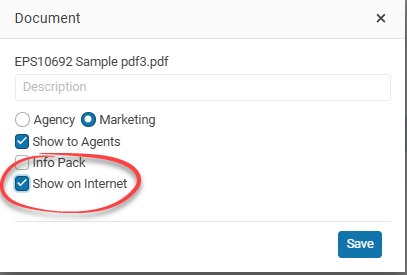
Displaying listing Property Files on your website is only available on your OSL hosted websites (And this option must be turned on for your website)
Displaying property files on your website is only available for OSL hosted websites.
Show to Agents
Use this option to let OSL Agent users in your office view this document.
OSL Agent users are only able to view documents they have uploaded to a listing, or documents associated with listings where they are the listing agent.
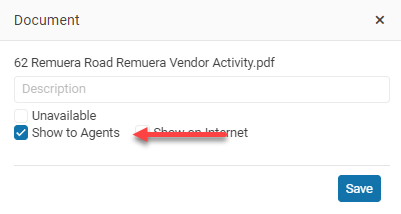
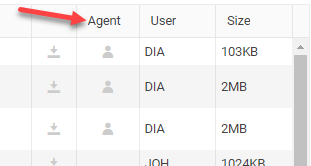
You can see if a Documents is available to your Agents by the Agent column.
Friendly Name
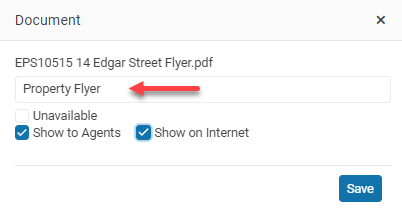
You can rename a document by giving it a friendly name, making it easier to identify.
Unavailable documents
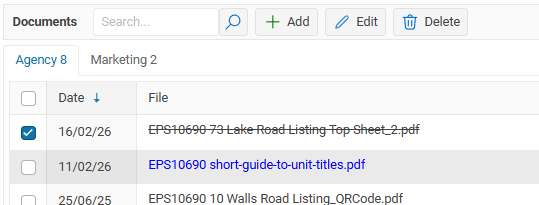
Select this option to mark a document as no longer in use.
The document will remain visible but will be displayed with a horizontal line through it.
This is useful when you no longer want a document or flyer to be used, while still keeping it on record for reference.
Invalid file names
The file names for your documents can’t contain any of these special characters: < > : “ / \ | ? * % $ ~