
Listing → Agency tab I

Understanding the listing Price section is important. Click on the Edit button beside the Price
TABLE OF CONTENTS

How is your property being marketed?
Market by
How are you marketing your listing? Choose to enter the sale Price for your property or choose to market the property without a price. Your options are Price, Auction, Tender, Deadline sale or No Price
Click on the Edit button to select how you are going to market your listing.
Price
When marketing a property with a Price
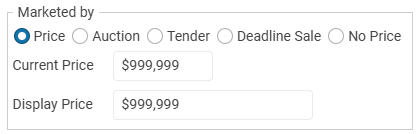
Enter the Current price and the Price display box will also show the price
Auction or Tender
When a property is going to Auction or a Tender.
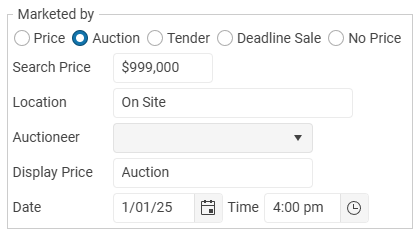
Select Auction or Tender and then a search price. The search price is not displayed on websites but is used to position the property in the appropriate price range.
Enter the Auction location, date and time.
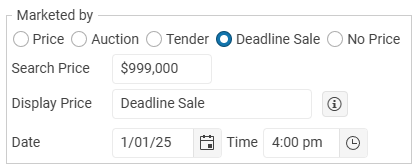
Deadline Sale
Select Deadline Sale
No Price
When marketing your property without a price, enter a Search Price so that websites know where to position your property.
Search Price
This value is not displayed on websites but is used to position your property in price range searches.
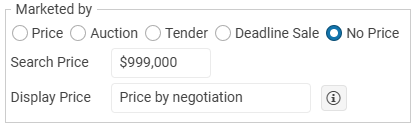
The portal websites use the Search Price to position your property when visitors search by price or sort by price.
The 'Search Price' value ensures that potential buyers can find your property within relevant price brackets. Setting this accurately maximizes your property’s visibility and accessibility to your target audience.
Select the option that you want to use.
The Search Price price is available when marketing a listing by Auction, Tender, Deadline Sale or No Price and is used to make sure that your listing is correctly positioned within the appropriate price range on websites.
The Search Price is never displayed to the public.

Price display
The Display Price box is displayed on your OSL website and used for flyers and brochures.
Unfortunately, not all property portal websites use the Price Display box. (Refer each portal website for how they display a listing price.)
Agency Authority
Agency type
Select the Agency listing type; Sole or General and enter the agency start date and end dates.
Your available Agency options are set in Settings → Company
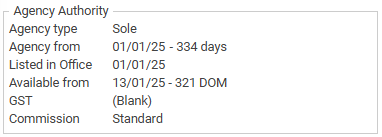
Agency from
This is the date that the agency agreement shows that the agency with the vendor begins
Listed in Office
The date the agreement has been entered into OSL
Available from
The date from when the property goes live or is marked as Available - DOM days on market
GST

There are 3 options for how you want to display the GST on your listing
Understanding how to enter the listing GST
There are 3 options for how you want to display the GST on your listing
- Display Price + GST inclusive (if any)
- Display Price + Plus GST
- (Blank)
Note. Not all portal websites will show the listing GST options.
Only properties being marketed by Price will display the GST label on OSL websites
Note. GST or VAT is dependent on your country.
Negotiated Commission

If the commission has been negotiated click here and enter the details in the confidential comments box.
Agents
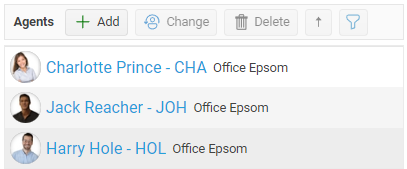
Add the agents for your listing. You can add up to 4 agents to a listing
Important only the first 2 are sent to website portals - but all agents will display on your OSL website
If your Company has more than one office (multi office) you can select an Agent from another office for the second Agent on a Listing.
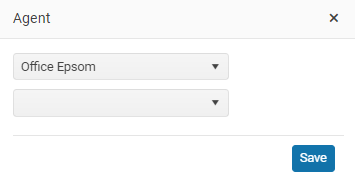
Listing Office
If your company has more than one office you can also select the office.
Any new listing will be attached to your current Office