
Staff > Staff details > toolbar buttons
TABLE OF CONTENTS

Agent Activity
The Activity button is one of the most important tools available to Sales Managers. It allows you to create detailed performance reports showing the activities completed by an Agent.
Open any Staff Profile and select the Activity button to report on the Agent's key activities and performance.
This provides Sales Managers with a quick way to review and monitor Agent activity directly from their Staff record.
Available for Selling Agents only
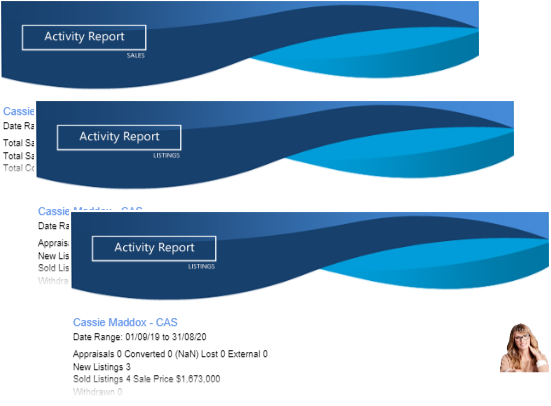
Agent performance reports can be created for; Listings, Sales and Agent earnings
Listings
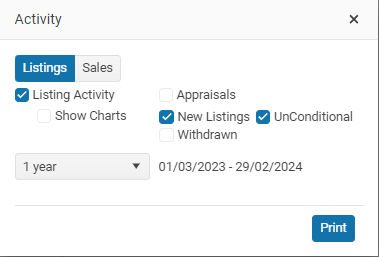
Click on the Activity button and select the listings option
Details report option
If you select the details checkbox you will get a list of all of the Listings (and Appraisals ) that make up your summary report.
Understanding the Listing Activity report
A listing will be displayed if the agent is either agent 1 or 2 on a Listing.
Available Listings will be included when the Listing has been changed to Available.
The green line on the Summary charts indicates that number of Listings for the previous year (this is only available on the 1 year view)
A listing that is Listed and Sold within the data range of your report will appear twice. Once as a New Listing and again as a Sold Listing.
Sales
With Sales activity option you can report on New Sales, Unconditional Sales and Released sales.
Show charts option.
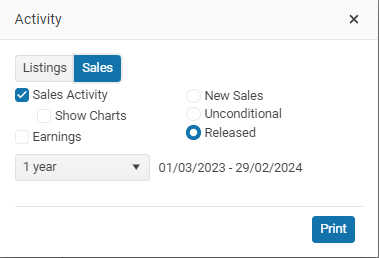
Date Range drop down - You can select quick Date Ranges, e.g. Current Month … or scroll to the bottom and input your own custom range.
Sales Activity
This report shows the actual amounts allocated and paid to the Agent. It allows users to view how each sale has been distributed. Both sides of the sale (Listing / Selling) are displayed.
The Agent’s share is calculated based on their portion of the sale price or commission received.
Notes. Understanding the Sales Activity report
- This report includes the Sales where the Agent has been attached to a Sale.
- One Sale can only count as 1, if there are two agents on the sale then they will be allocated 50% of the Vol, Sale Price and commission into office.
- Important: An Agent may be attached to a Sale but not the Listing. This is because a sale can have unlimited agents attached.
- Sales that have been marked Unconditional within the date range that you have selected.
- The green line on the Summary Charts indicates the number of Sales for the previous year (this is only available on the 1 year view)
Earnings
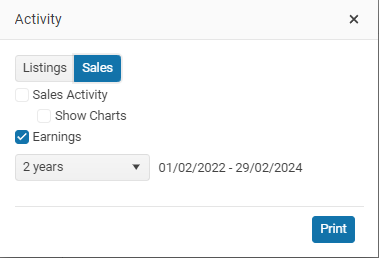
Activity > Sales - earnings
These reports are only available if you are paying your Agent vis Sales> Clearing module
The Earnings activity report is report of the money paid to your agents.
This includes; commission paid as well as withholding tax deducted and Taxable and non taxable journals.
Understanding the Sales Earnings Activity report
- This report includes all Sales where the Agent has been paid for a Sale.
- Sale transactions that have been Paid within the date range that you have selected.
TXT button
Send a TXT message to your Agent or staff member
Email button
Send an email to your Staff member
Print button
The Staff Print button allows you to print information and reports relating to a Staff member or Agent.
Depending on the Staff member, you can print:
- Staff Profile – The Staff member's current profile information.
- Financial Year-to-Date Activities – A summary of the current financial year's activities for a Selling Agent.
- Staff Profile with Audit Changes – The Staff member's profile, including a history of changes made to their record.
- Agent QR Code – A QR code linking directly to the Agent's profile on your OSL website.
Staff & Agent photos
It's important to strive for consistency when it comes to staff images. Inconsistent staff images can have a negative impact on your brand or business. Therefore, it's recommended to ensure that your staff images are consistent to maintain a professional and cohesive image for your brand.
Image size
Image size "Square300 pxls x 300 pxls at 300 dpi

Click on the Photo button to add an image to your Staff profile.

Multiple staff images
You can have more than 1 image for your salespeople.
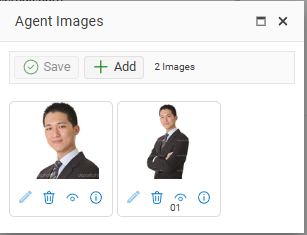
Hide an Image
Just the same as for Listing images you can hide an image by select the Hide image button.
Hidden images will be shown with a red boarder
Getting the best Staff image
The Staff image is used on Brochures & Flyers as well as your company website Our People page
Try and use consistent staff images
"Nothing says more about a company where there are inconsistent sizes of your staff images on the our people page!
In the agents email signature as well as an images that print well on advertising."
If your real estate group already has a policy and procedure in place for agents' images, it's important to adhere to those guidelines. However, the following section is specifically intended for offices that do not have an existing policy and procedure for agent images.
Poor Agent images can include, Inconsistent image size, inconsistent aspect ratio (e.g. Landscape vs portrait or square), Head, vs head & shoulders vs full height, Agents with background images or inconsistent background images'
It's important to strive for consistency when it comes to staff images.
Inconsistent staff images can have a negative impact on your brand or business. Therefore, it's recommended to ensure that your staff images are consistent to maintain a professional and cohesive image for your brand.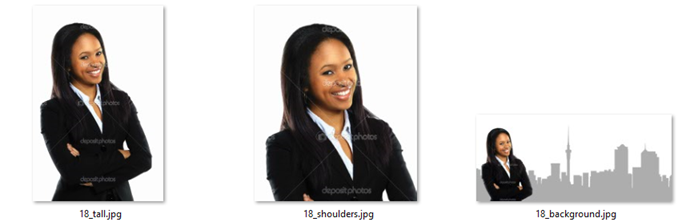
Staff images for your website and printing flyers ;
- consistent head or head and shoulders shots
- If your OSL website has an Our People ratio of 1:1 (square images) then upload square Agent images, if your website is showing agent 3:4 the images should be 3:4 aspect ratio
- 300 dpi file size for hi res printing of flyers
- 300 w pixels wide
- No background color or at least the same background.
- File format *.jpg
Often users will upload images that are very wide e.g.1200 but with a very low dpi. This results in poor quality agent image for Printing.
NEXT Staff Details tab