
Marketing → eNews
eNews is your email marketing tool. Send emails with new listings or newsletters to your People database.
TABLE OF CONTENTS
- New Email Campaign
- Step 1 Select a template
- Step 2 Message
- Step 3 Select your Listings
- Step 4 Select your Contacts
- Step 5 Preview
- Step 6 Send your email campaign
- Results
- eNews templates
- Tips & Tricks
- eLetters

Take some time to go through each step when creating your email campaign. The more often that you create a campaign the easier it will be.New Email Campaign
Click on the New button to create a new email campaign.
When you create a campaign you will need to follow each of these steps in the eNews wizard; Save your campaign at anytime, a saved campaign will be shown as a Draft campaign until you are ready to send.
Step 1 Select a template

- Name your campaign - The name of your campaign is not sent with your email, it's an internal reference nothing your contacts will see. The campaign Name is compulsory.
- Select your template - Select the eNews template that you want to use. Try different templates to see which one suits your email campaign. Template options...
- Display Address options - This option allows you to choose how the listing Address is displayed. The Address option will display the listing address, while the Suburb, Region or Country will only display the Listing Suburb, Region or Country.
- Adcopy - Select which advertising copy that you want to be displayed in your eNews campaign.
- Display Price - Choose if you want to show the Listing display price.
- Display Property icons - Choose if you want to show the Property icons in your email.
- Open Homes - Choose if you want to show open home times for your listings.
Commercial users can send either the Display Price with the Nett lease amount + sqm and Lease OPEX
Send From
Choose whose signature you want the email to be sent from.
This option determines which agent the email campaign is sent on behalf of.
Select the agent, and their email signature will automatically be inserted into the campaign email.
Before sending, make sure the selected agent has a correct email signature saved in their profile.
To check or update the signature:
Go to Staff > Email tab and confirm the signature details are set correctly.
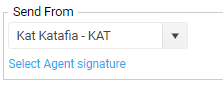
OSL Agent uses will automatically add your signature
On Step 2 you enter your email message
Step 2 Message
Email Subject

Getting your email message right. Give your email an eye catching subject, people receiving your email will see the subject of your email first.
Examples email subject lines might be;
- I thought you might be interested
- The address of the Listing
- New listings
- Market report
- Newsletter
Email Body
On this step you create the message for your email.
This section will appear above any listing that you are sending.
Email Templates - You can use one of your own templates or a system email template or you don’t have to use one at all and you can just type your email.
Merge fields
It’s important to use the merge fields so that you can make your email more personal.
Use the Email merge field ‘Known as’. When you create an email addressed to the person
e.g. ‘Hi John’ it will greatly increase the chances that you email will be opened.
Step 3 Select your Listings
Select the listings that you want to send out they will be added to the Select listing grid
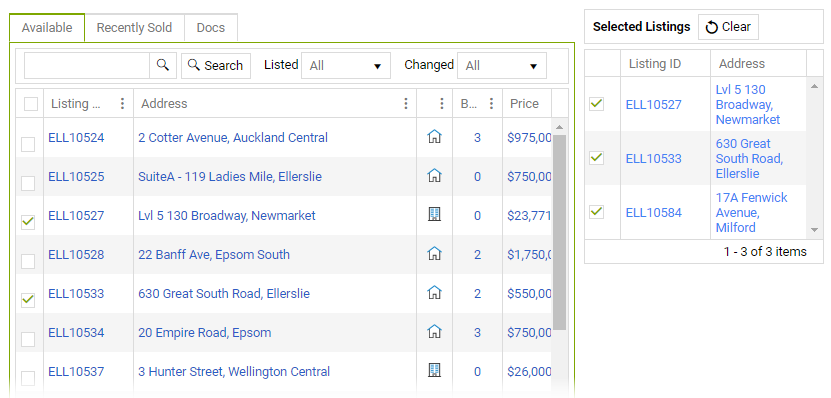
Don't select too many listing's, People will only get annoyed if you send out too many listings it will increase the chances that they may mark your email as spam or unsubscribe from receiving emails from youUse the Blank template if your email campaign does not have a listing
If you select a Listing where you are not Agent 1 or agent 2 on a listing your name will still appear when the person reading your email chooses to click through to view more information about the listing! (how powerful is that?!)
(Only on OSL hosted websites.)
Step 4 Select your Contacts
At this step, you will choose all the contacts you want to send your email to.
Start by clicking the Search button.
The search window allows you to send your email to the specific groups of contacts.
By default, the search will look within the agent’s database for the agent you are running the campaign for.
If you want to send the email campaign to your active Buyers, specific Groups, or people linked to a Listing, select your criteria and then click Search.
Sending to everyone in your office database

The database option is only available to OSL admin users.
Send to all Contacts - If you want the campaign to be sent to all agents’ contacts in the office, you must remove the agent filter. To do this:
- Unselect the agent from the drop-down in the search window
- Click on the ALL option to clear the filter
Important notes
- Duplicates - The search process will automatically detect duplicate email address. If more than one person in your database has the same email address, only the newest person will be included.
- Unsubscribed - Contacts who have unsubscribed from emails are automatically excluded from the campaign.
Once you are satisfied with your selection, click Save and move to Step 5 – Preview.
Step 5 Preview
On this step you can see a Preview of your email.

The Preview step and sending a Test email will not merge fields in your email. Any merge fields in your eNews campaign are only merged when the email campaign runs.
Click here - We call this link back i.e. link back to your website, this will only work if your office is running an OSL website or your office website accepts the listing number in the Listing URL.
Step 6 Send your email campaign
You are done now all you have to do decide when you want your email campaign to run.
- Send now or schedule for a day and time
- Then click on the Send button. You are Done!
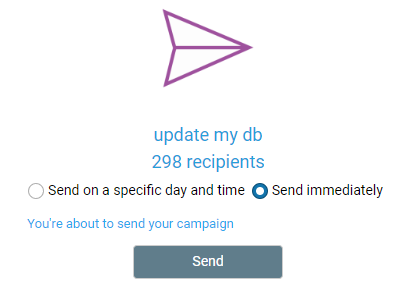
Your email campaign will now be placed in the outbound email queue.

Email campaigns are placed into a queue on our servers and will be sent out as close as possible to your chosen time.
Auto unsubscribe - Emails are sent with an unsubscribe option.
Results
Select a sent campaign and click on the Results button more...
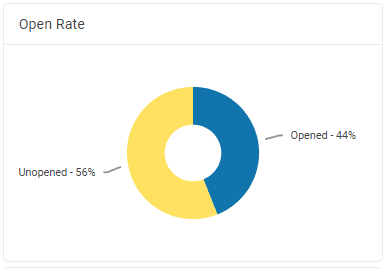
Here you can see who opened your email as well as who has clicked through to view more details.
After you have sent your email you can see who has opened your email and how many people have clicked through on your email.
eNews templates
There are a number of templates to choose from and each template works differently more…
Tips & Tricks
Before you send your first eNews campaign Learn some of the tips and tricks for creating successful campaign.
eLetters
Send custom emails to your clients more...
NEXT eNews templates